Cafes, restaurants, bars and bakeries: every business that serves at the table.
Table layout
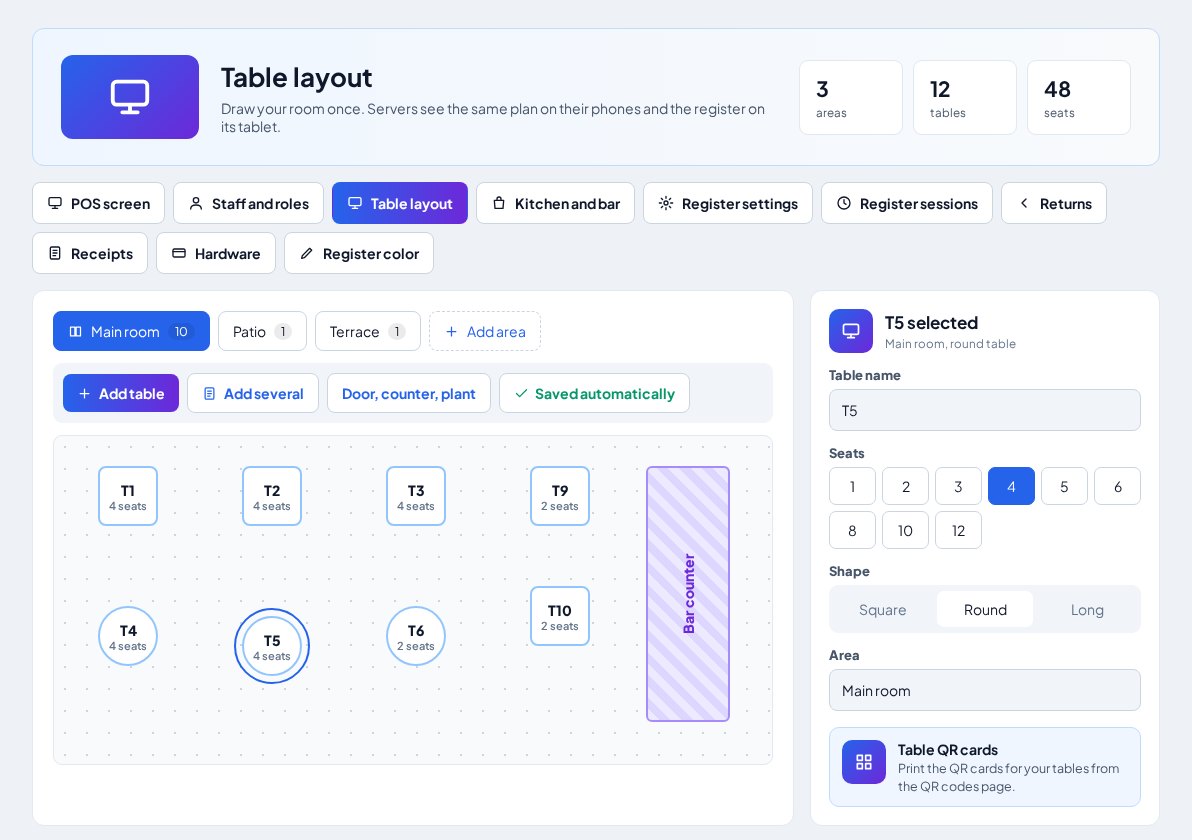
Main room, patio, terrace: you name the areas and drag the tables into place.
Server phone
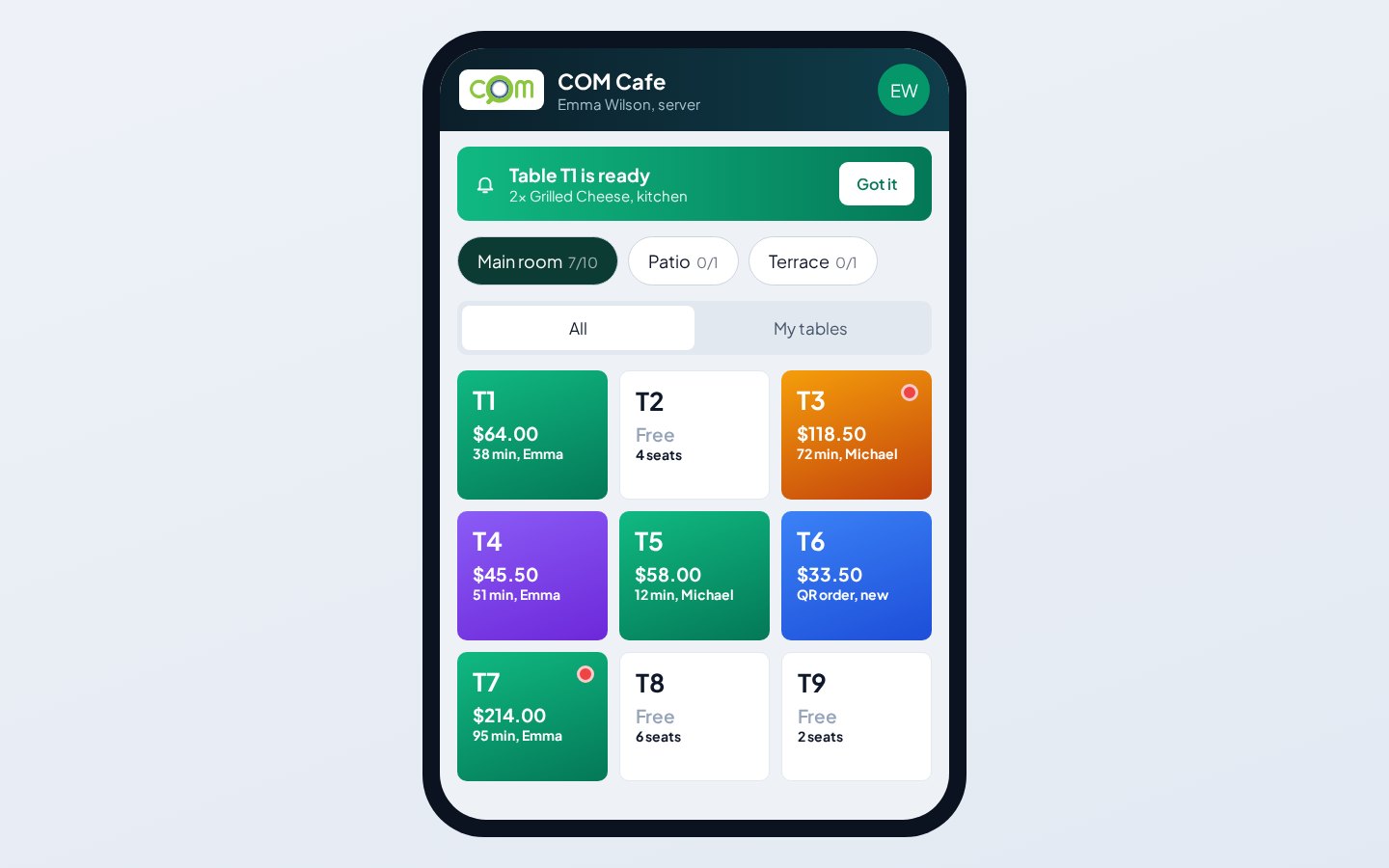
Servers scan a QR code on their own phone, tap their name and take orders with their PIN.
Kitchen and bar
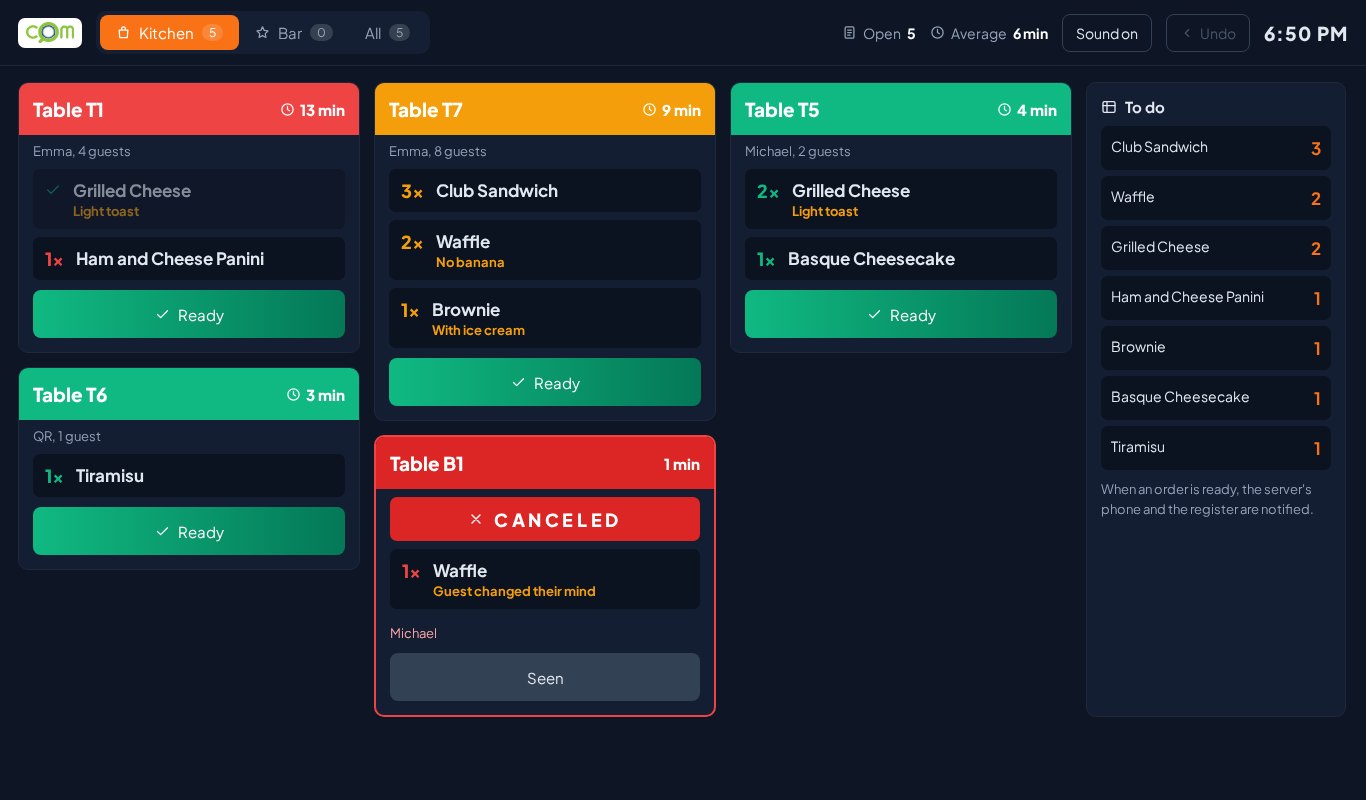
Food goes to the kitchen and drinks to the bar on separate tickets, on a tablet or a printer.
Ready alerts
When the kitchen taps Ready, the server's phone buzzes and the register shows it.
Split payments
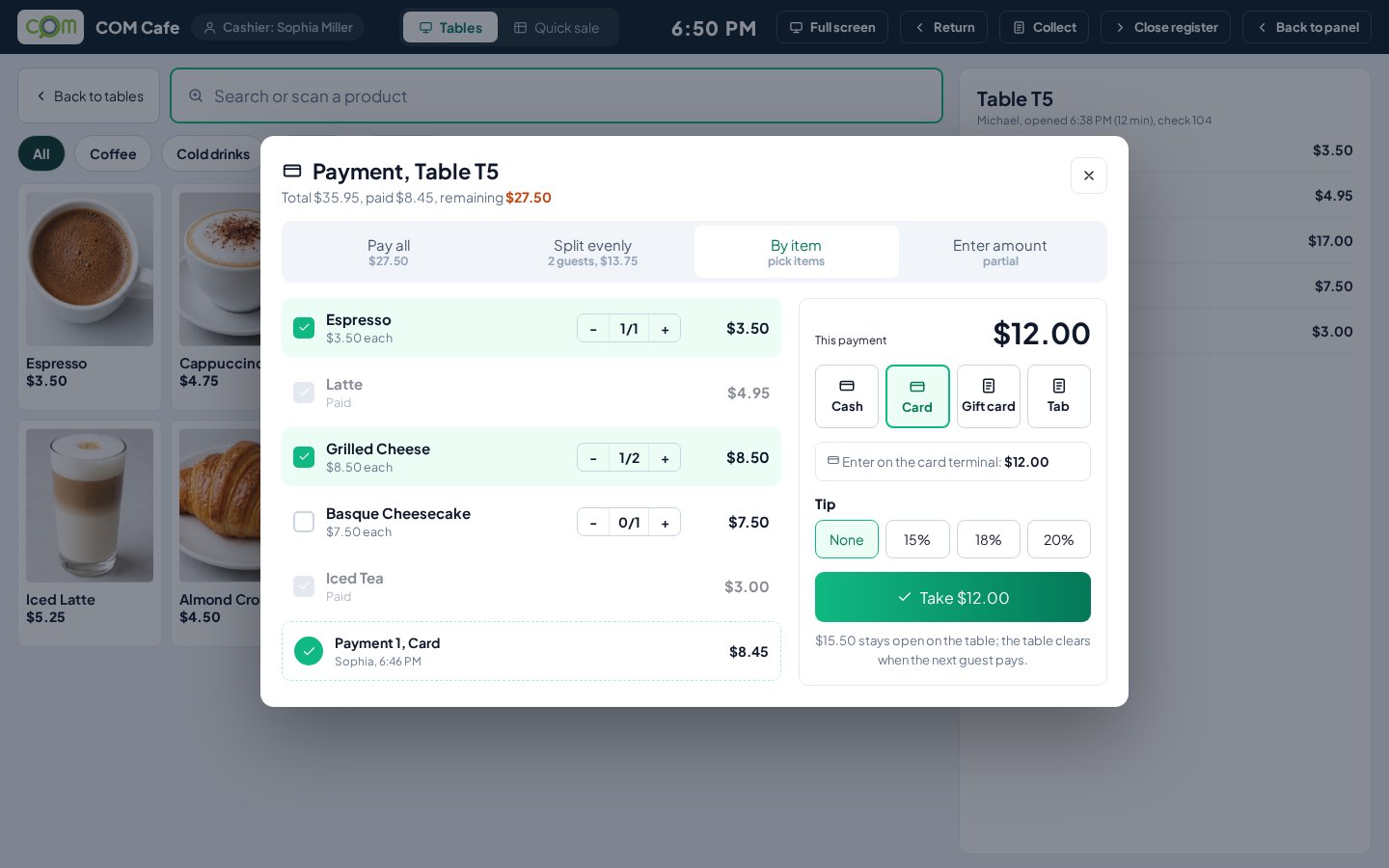
Pay all, split evenly, by item or by amount; the rest stays open on the table.
Move, merge, split
Guests who change tables, merged tables and separate checks.
QR orders to the table
An order a guest places from the QR code lands on that table's check.
Roles
Servers never see sales totals or open balances; only the register closes a check.
Straight to your books
Every payment is booked as a register sale, with cash, card and gift card kept apart.
Draw your room once
Name the areas, drag the tables and resize them from a corner. A ready template gets you set up in two minutes; servers see the same plan on their phones and the register on its tablet.
Square, round and long tables, and stools
Add several: 10 tables at once
Doors, counters and plants to find your way
A color-coded floor plan at the register
Which tables are occupied, which want the check and which server is bringing the money: all at a glance. A table waiting too long turns red.
Occupied, check requested, paid to cashier, QR order
Waiting on the right: payments, checks, QR orders, ready in the kitchen
Tap a table to open its check
Four guests can pay separately
Take the check in full, split evenly by guests, by item or by typing an amount. The rest stays open on the table, and the table closes with the last payment.
Cash, card, gift card and tabs
For cards, the amount to enter on the terminal is shown
Service charge and tips
On the server's own phone
No app to download, no email, no password. The server scans the QR code, taps their name and enters their PIN, then takes orders, sends them to the kitchen and brings payments to the register.
Sees only the areas you allow
The phone buzzes when an order is ready
When someone leaves, delete their name and their phone stops working at once
Kitchen display and ticket printer
Orders land on the tablet in the kitchen and change color as time passes. When someone taps Ready, the server is told. If you like, each station prints its own tickets automatically.
Kitchen, bar, grill: as many stations as you need
A CANCELED ticket for a voided item
Sound alerts, and the screen never sleeps
Questions
Frequently asked questions
Do I need to buy extra devices?
No. The register runs in a browser on a computer or tablet, the server screen on the server's own phone and the kitchen display on any tablet. You can use 58 or 80 mm thermal ticket printers.
Do servers see sales totals?
No. On the staff and roles screen you choose what each role can see and do. By default servers do not see sales totals, open balances or what is owed, and only the register closes a check.
How do I split a check?
In the payment window, choose Pay all, Split evenly, By item or Enter amount. Each payment is saved separately, the rest stays open on the table and the table closes with the last payment.
What happens to an order from the QR menu?
With a table layout set up, an order the guest places from the QR code lands on that table's check. You decide whether a server approves it first or it goes straight to the kitchen.
Is it the same as the POS?
It is the table mode of the same register. At the top of the register you choose Tables or Quick sale; counter sales and table checks go into the same register session, the same stock and the same books.
 COM Cafe